How-to
Negative Lab Pro: How to Convert Film Negatives, Step by Step
The short answer
Negative Lab Pro is a $99 plugin for Lightroom Classic that turns scans of film negatives into editable positives.
You make a raw camera scan, a VueScan or SilverFast DNG, or a flatbed TIFF, import it into Lightroom Classic, white balance raw files off the film border, then open the plugin (Ctrl+N on a Mac) and hit Convert before fine-tuning tone and color. The free trial is the full program with 24 conversions and no watermarks, enough to test it on your own negatives before you pay.
- Price
- $99 one-time, up to 2 computers (Oct 2026)negativelabpro.com
- Free trial
- 24 conversions, no watermarksnegativelabpro.com
- Runs in
- Lightroom Classic or Lightroom 6.14, Mac or Windowsnegativelabpro.com
- Scanning light
- CRI 90+, 5000K to 5500Knegativelabpro.com
- Camera scan settings
- Raw, base ISO, f/8, one fixed exposure per rollnegativelabpro.com
- Batch size (official guide)
- About 100 negatives at oncenegativelabpro.com
What is Negative Lab Pro and what software does it work with?
Negative Lab Pro (NLP) is a plugin by Nate Johnson that runs inside Adobe Lightroom Classic, or the old standalone Lightroom 6.14, on Mac or Windows. It is not a standalone app: Lightroom Classic has to be installed before you run the NLP installer. The current version is v3.1.1, sold for $99 on the official site (October 2026).
It does more than flip the colors. NLP analyzes each frame, or since v3 the whole roll, to set color balance and tone, then gives you film-style controls: lab scanner color models such as Frontier and Noritsu, tone profiles, automatic white balance and LUTs. The edits stay non-destructive on the original raw file, so you can reopen a conversion and keep editing it later.
It reads raw files from a digital camera, raw DNGs from VueScan or SilverFast, and TIFF scans from scanner software such as Epson Scan. It does not run in Capture One or Photoshop: in a 2020 interview the developer said Capture One's plugin environment was not advanced enough, and that Photoshop has a good plugin environment but is not a raw processor.
Older reviews describe earlier versions. Version 3 (2023) added roll analysis, presets and undo/redo and raised the trial from 12 to 24 conversions. Version 3.1 added a Positive mode for slide film, an Edit Only mode, Match (the old Sync Scene feature) and native Apple Silicon support.
Sources: negativelabpro.com, negativelabpro.com, negativelabpro.com, negativelabpro.com, forums.negativelabpro.com, forums.negativelabpro.com, casualphotophile.com
What you need for Negative Lab Pro, and what it costs
The plugin is one piece of a setup. You need Lightroom Classic, a way to digitize the negatives and, for camera scanning, a light, a film holder and a stand. NLP itself works with any scanning route, so moving from a flatbed to a camera later does not mean buying anything else from NLP.
Lightroom Classic is sold by subscription. Adobe's 1TB Photography plan, with Lightroom Classic, Lightroom and Photoshop, costs $19.99 a month according to Life After Photoshop's August 2026 summary, about $240 a year ($19.99 x 12 = $239.88). Sources disagree on whether the cheaper $11.99 Lightroom plan includes Lightroom Classic, so check Adobe's plan page before choosing it.
Adding up one budget route from the prices below gives $232.95 one-time: $99 NLP + $44.95 CineStill CS-Lite + $89 Negative Supply Basic Film Carrier 35 MK2. That assumes you already own a digital camera, a macro lens and a tripod or copy stand, and it comes on top of the Adobe plan. For raw DNGs from a film scanner, VueScan Professional, the edition that saves raw files, lists at $199.95 one-time or $79.95 a year. A flatbed such as the Epson V600 can feed NLP with TIFFs from its own Epson Scan software.
| Item | Why you need it | What to look for |
|---|---|---|
| Negative Lab Pro license | Does the conversion and the film-style editing | $99 for up to 2 computers you own; try the free trial first |
| Lightroom Classic | NLP only runs inside it | Version 13 or later for v3.1's Refined color process; 8.0 or later for the built-in LUTs |
| Camera and macro lens (camera scanning) | Photographs the negative as a raw file | Shoots raw; a modern macro lens gives sharper results and less flare |
| Light source | Backlights the film evenly | CRI 90 or higher, daylight balanced at 5000K to 5500K, never warmer |
| Film holder | Keeps film flat and off the light panel | Built-in flattening; film lying on the panel can cause Newton rings |
| Copy stand or tripod | Holds the camera steady and parallel to the film | An adjustable copy stand is ideal; a tripod with the center column inverted works in a pinch |
| Scanner software (scanner route) | Makes the file NLP converts | VueScan Professional or SilverFast for raw DNG; Epson Scan for TIFF with color correction off |
The NLP developer calls a light source with no listed CRI a big red flag.
Sources: negativelabpro.com, lifeafterphotoshop.com, community.adobe.com, cinestill.film, cinestill.film, hamrick.com, negativelabpro.com, forums.negativelabpro.com, forums.negativelabpro.com, negativelabpro.com, forums.negativelabpro.com
Negative Lab Pro setup prices (October 2026)
| Seller | Item | Price | Note |
|---|---|---|---|
| Negative Lab Pro | Negative Lab Pro v3.1.1 license | $99.00 | One-time, up to 2 computers; VAT may be added in some countries |
| Adobe (per Life After Photoshop) | Photography plan, 1TB, with Lightroom Classic | $19.99/month | Third-party summary updated August 2026; confirm on Adobe's site |
| Hamrick Software | VueScan Professional, one-time purchase | $199.95 | List price; saves raw files for film scanners |
| Hamrick Software | VueScan Professional, annual subscription | $79.95/year | List price |
| CineStill | CS-Lite camera scanning light source | $44.95 | Listed as a top seller |
| CineStill | CS-Lite+ SpectraColor light source | $99.95 | Newer, higher-end light |
| CineStill | Negative Supply Basic Film Carrier 35 MK2 | $89.00 | 35mm film carrier |
| CineStill | Simple 35 film scanning system | $179.00 | 35mm scanning system |
| CineStill | Valoi easy35 V2 film scanning kit | $270.99 | 35mm scanning kit |
| CineStill | 360 Essential Copy Stand V2 | $188.99 | Copy stand |
| CineStill | Negative Supply Essential Kit for 35mm with Basic Riser Mini MK3 | $449.00 | Stand and carrier kit |
Prices checked October 2026. They change often.
Which scan works best with Negative Lab Pro: camera, film scanner or flatbed?
NLP accepts three kinds of files, and each needs different settings before conversion. Its own guide lists raw capture, faster capture times and sharpness it says rivals $10,000+ drum scanners as the upsides of camera scanning; treat the sharpness line as the vendor's claim. The catch is dust: a camera has no infrared channel, so there is no IR dust removal, and you have to keep the film clean instead.
For specific scanner picks, see our best film scanners guide. For the full camera versus flatbed setup, see how to scan film at home.
| Camera scan (raw) | Film scanner raw DNG | Flatbed TIFF | |
|---|---|---|---|
| Made with | Your digital camera | VueScan Professional or SilverFast | Epson Scan or similar scanner software |
| Key settings | Raw, base ISO (usually 100 or 200), f/8, one manual exposure for the roll | VueScan: 48 bit RGB, never 64 bit RGBI. SilverFast: Positive mode, 48-bit HDR DNG | Scan as a positive, 48-bit, gamma 1.8 or 2.2, all color adjustments off |
| White balance before converting | Yes, off the film border | Yes, off the film border | No, it creates color casts on TIFFs |
| Infrared dust removal | Not possible | Lightroom can't read the 16-bit IR channel, so save 48 bit RGB, not 64 bit RGBI | Epson's no-color-correction method can't use Digital ICE |
| Extra step | None | None | Gamma 1.0 files need File > Plug-in Extras > TIF Scan Prep first |
Sources: negativelabpro.com, negativelabpro.com, forums.negativelabpro.com, negativelabpro.com
How to set up a camera scan for Negative Lab Pro
These settings come from NLP's scanning and image-issues guides. The guide traces orange blobs and edges to uneven light and reflections in the setup, so a clean capture comes first.
- 1
Set up the light
Use a light with a CRI of 90 or higher, daylight balanced at 5000K to 5500K. The NLP developer reports even illumination every time from a Kaiser Slimlite Plano.
- 2
Mask stray light
Block any light that isn't shining through the negative; dark construction paper with a cutout a bit wider than the negative will do. Keep the film close to the diffuser, or the holder casts a shadow that turns into bright orange edges after conversion.
- 3
Raise and flatten the film
Use a holder that keeps the film flat and slightly off the light pad, since film lying directly on it can cause Newton rings. Put the emulsion (matte) side toward the camera because it reflects less.
- 4
Set the camera
Shoot raw at base ISO (usually 100 or 200) and f/8 to keep vignetting down. Use the lens hood and take off any UV filter to cut reflections.
- 5
Lock one exposure for the roll
Expose at the meter reading or 1 stop over, aiming for the negative just right of center on the camera histogram, then keep that exposure for every frame. For roll analysis, the v3 notes give another method: with no film in place, adjust the shutter speed until the whole light table clips to pure white, and keep it.
- 6
Keep dust off
A camera scan has no IR dust removal, so prevent dust instead of fixing it: wear lint-free gloves when handling film. Lightroom's Spot Removal tool can clean up the few spots that remain.
Sources: negativelabpro.com, negativelabpro.com, forums.negativelabpro.com, forums.negativelabpro.com, cinestill.film, negativelabpro.com
How to install Negative Lab Pro and find your activation key
Install Lightroom Classic first, then download NLP from the official site and run the installer. Until you buy, it runs as the free trial: the full program with no watermarks, limited to 24 conversions. On Windows, leave the hotkey helper running at the end of the install, because the Ctrl+Alt+N shortcut (English-language Lightroom) only works while it runs.
After buying, activate it in Lightroom under File > Plug-in Manager: paste the license from your receipt email into the field beside the key symbol and hit Activate. One license covers up to 2 computers you own; to move it, deactivate it in the Plug-in Manager first.
Lost the key? For v3 licenses, go to Lemon Squeezy's order lookup and enter the exact email you bought with; it sends a magic link to your order with the download and license number. Keys for v2.4.2 and older came from Gumroad, in an email with the subject 'You got Negative Lab Pro for Lightroom'.
A license covers every update within its major version (a v3 key covers v3.1 and v3.2) plus any major update released within 6 months of purchase. When v3 launched in 2023, buyers from after October 1, 2022 upgraded free and earlier v2 owners paid $49. Students and educators can ask for a discount by emailing proof such as an ID.
Sources: negativelabpro.com, negativelabpro.com, negativelabpro.com, forums.negativelabpro.com, forums.negativelabpro.com, negativelabpro.com
How to convert negatives in Negative Lab Pro, step by step
This is the core workflow from NLP's getting-started and batch guides, for color negatives such as Kodak Portra 400. Black and white and slide film differ slightly; see the section on them below.
- 1
Import the roll into its own folder
Import the scans into Lightroom Classic with one folder per roll. Roll analysis names each roll after its folder, which keeps rolls easy to tell apart.
- 2
White balance raw files on the film border
For camera scans and raw DNGs, use Lightroom's White Balance Selector on the clear film border, once per roll, then sync it to the other frames. If there is no border, or Lightroom says it is too bright, use Auto WB instead. Skip this step for TIFFs.
- 3
Crop out everything that isn't film
Crop away the film holder and any unmasked light, or leave a rough crop and set Border Buffer, the percentage of the edges NLP ignores during analysis. Holders and direct light must always be excluded.
- 4
Select the frames and open NLP
Select one frame or the whole roll, then press Ctrl+N on a Mac, Ctrl+Alt+N on Windows, or go to File > Plug-in Extras > Negative Lab Pro. NLP's Lightroom tips page says edits update considerably faster in the Develop module.
- 5
Choose the conversion settings
Pick the color model (Basic, Frontier, Noritsu or B+W), leave pre-saturation at its default of 3, and tick Roll Analysis if you selected a full roll.
- 6
Hit Convert, not Apply
Click Convert to run the analysis. Hitting Apply by mistake used to eat trial uses; v3 grays Apply out until a frame is converted.
- 7
Pick a tone profile
Lab Standard is the default and, per the guide, works well with Kodak Portra. The Cinematic profiles pair with cine film such as CineStill (for example CineStill 800T) and Kodak Vision3, and the developer starts black and white from Linear + Gamma.
- 8
Fix the color
Choose a white balance option (AutoNeutral is the default; AutoWarm measures and corrects cyan or blue casts), then fine-tune temp and tint. Expect to add warmth: the guide says 95% of the time some is needed, because the conversion is offsetting the orange mask.
- 9
Set brightness, contrast and toning
Adjust brightness and contrast, then use the Mids, Highs and Shadows color tabs and the LUTs (Natural, Frontier, Crystal, Pakon) for the final look. The LUTs only appear in Lightroom Classic 8.0 or later with the enhanced profiles installed.
- 10
Carry edits across the roll
Use NLP's own Sync Settings or Match to copy edits to other frames, never Lightroom's Sync or Reset on converted files. The batch section below covers how.
- 11
Save your look
Hit Save to make your current settings the default for future conversions, or save them as a preset in v3.
- 12
Export
Export from Lightroom as usual with your normal size and compression settings. To hand off a positive file for other editing, use right-click > Export > NLP - Positive TIFF Copy.
Sources: negativelabpro.com, negativelabpro.com, forums.negativelabpro.com, forums.negativelabpro.com, negativelabpro.com, negativelabpro.com, 5050travelog.com
Negative Lab Pro settings explained
Out of the box, NLP uses the Lab - Standard tone profile and AutoNeutral white balance with everything else zeroed. Color model, pre-saturation and Border Buffer feed the conversion itself, so changing one means unconverting and reconverting. The guide treats the tone profile as the first step after conversion.
| Setting | What it does | Where to start |
|---|---|---|
| Color model | Overall color rendering: Basic is neutral; Frontier emulates the Fuji Frontier lab scanner (teal-blues, golden yellows, warm tints); Noritsu is similar but less warm; B+W is for black and white | Frontier or Noritsu for a lab-scan look, Basic for accuracy |
| Pre-saturation | Saturation applied during the conversion itself | Default 3; change it only after every other edit |
| Border Buffer | Percentage of the frame edges the analysis ignores | Exclude the border normally; include a little on low-contrast scenes with no true black |
| Roll Analysis (v3) | Builds one profile from the whole roll, truer to the film stock and less scene dependent | Full rolls, especially single-color scenes, very warm or cool light, bright portraits and blue skies |
| Color process (v3.1) | Classic, the earlier default, or Refined, with cleaner neutrals and more accurate tonality | Refined needs Lightroom Classic 13 or later |
Sources: negativelabpro.com, forums.negativelabpro.com, forums.negativelabpro.com, negativelabpro.com
How to batch convert a whole roll with roll analysis
Roll analysis, new in v3, is built for consistent conversions of a full roll: it profiles the film stock instead of judging each scene on its own. It assumes every frame was captured with the same manual exposure, as in the camera setup steps above.
- 1
Select every frame, all in the same state
Select all frames from the roll. NLP's batch guide says the selection should be all unconverted or all converted, not a mix.
- 2
Exclude non-film areas
Crop out the holder or set Border Buffer so only the film emulsion is analyzed.
- 3
Tick Roll Analysis and convert
Check the Roll Analysis box and hit Convert. The official batch guide suggests about 100 negatives at a time, while the v3.1 notes say memory fixes let the developer process over 500 at once on a 2019 MacBook Pro, so the limit depends on your computer.
- 4
Edit one frame, then sync
In batch mode, edits change only the primary image. Hit Sync Settings to copy NLP's slider settings to the rest, or use Match to copy one frame's settings and image analysis to frames that should look identical.
Sources: forums.negativelabpro.com, negativelabpro.com, forums.negativelabpro.com, negativelabpro.com
Black and white negatives and slide film in Negative Lab Pro
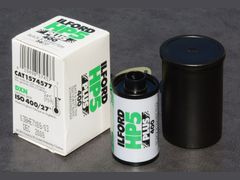 HP5 Plus
For black and white negatives such as Ilford HP5 Plus, skip the white balance step and set Color Model to B+W when you open NLP, which the guide calls the most important step. Start from the Linear + Gamma tone profile, which uses the same gamma curve as black and white photo paper, then adjust brightness and contrast.
If a black and white conversion still shows a tint, check that B+W was selected, then hit Reset above the tone section. Any color toning saved in your default settings gets applied even to black and white frames.
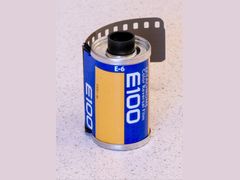
Since v3.1, NLP also handles positives. The Positive image type is meant for slide film such as Kodak Ektachrome E100, and Edit Only skips the analysis so you can edit digital shots, slides or negatives you converted earlier.
Sources: negativelabpro.com, negativelabpro.com, forums.negativelabpro.com
How to edit film scans after converting them in Negative Lab Pro
Do the color work inside NLP, then finish in Lightroom. NLP's Lightroom tips recommend these tools on a converted raw negative: cropping, Spot Removal (Q) for small dust spots, lens correction, Guided Upright to square up camera scans, the Texture slider and graduated filters, which the guide uses to cancel out a light leak on the original negative.
Two tools need care. The HSL panel works if you use its picker and drag on the image instead of moving the sliders, because you are still selecting colors in the original negative. Lightroom's main tone and color sliders don't behave as expected on a raw negative, so for those make a positive copy: select the frames, then right-click > Export > NLP - Positive TIFF Copy.
Choose the copy's color space by where it is going: sRGB for the web, AdobeRGB for print, ProPhotoRGB if you will keep editing in Lightroom. If your camera scanning setup uses a lens adapter, set lens correction by hand, since the adapter usually stops the camera recording the lens data Lightroom needs.
Sources: negativelabpro.com, negativelabpro.com
How to edit lab scans that are already positive
Scans from a lab come back as positive files, so you don't need NLP's conversion. Shoot It With Film names three tools for fixing a scan's color: Lightroom's white balance slider, moved opposite the color cast; the HSL panel, which can tame a single color, such as desaturating only the greens; and Photoshop's Selective Color adjustment layer for subtle color and contrast nudges.
Analog Cafe's editing guide notes that lab and home scans often benefit from color correction, cast removal and contrast tweaks, and it aims to enhance the film's own look without sacrificing fidelity. NLP's Edit Only mode (v3.1) also works on positive scans if you prefer its controls.
Shoot It With Film's John Adams III points out that labs usually do a great job but sometimes miss on color, since they weren't there when you shot. If yours misses on most rolls, compare other mail-in film labs.
Sources: shootitwithfilm.com, analog.cafe, forums.negativelabpro.com
Common Negative Lab Pro mistakes
These slips come up repeatedly in NLP's own guides and announcements:
- Hitting Apply instead of Convert. On older versions it burned trial uses on unconverted frames; v3 grays Apply out until conversion.
- White balancing a TIFF. The film-border white balance is for raw files only; on a TIFF it creates color casts, and sampling the film mask with the color picker adds strong blue saturation.
- Leaving scanner color correction on. For TIFFs, turn off every color adjustment in the scanning software and scan as a positive.
- Using Lightroom's Reset or Sync on converted files. Reset breaks the conversion and Lightroom's Sync skips the metadata NLP needs; unconvert inside NLP and reconvert, and copy edits with NLP's Sync Settings or Match.
- Letting the camera auto-expose each frame. Lock one manual exposure for the roll to cut variance.
- Leaving the holder or bare light in the frame. Crop it out or raise Border Buffer so it stays out of the analysis.
- Saving VueScan DNGs as 64 bit RGBI. Lightroom can't read the 16-bit IR channel; use 48 bit RGB.
- Mixing converted and unconverted frames in one batch. Select frames in the same state.
- Pushing Lightroom's main sliders on the raw negative. Edit inside NLP or make a positive copy first.
- Changing pre-saturation early. Leave it at 3 and revisit it only after every other edit.
Sources: forums.negativelabpro.com, negativelabpro.com, negativelabpro.com, negativelabpro.com, negativelabpro.com
Negative Lab Pro troubleshooting
Find what you are seeing in the table. The fixes come from NLP's image-issues, troubleshooting and installation pages.
| Problem | Likely cause | Fix |
|---|---|---|
| Strong blue or cyan cast | Normal before correction, the inverse of the orange mask; on TIFFs, Lightroom white balance or scanner color correction; on raw files, a camera profile that didn't load | Use AutoWarm or AutoNeutral and add warmth with temp and tint; don't white balance TIFFs; check the camera profile loads with no errors |
| Orange blobs or orange edges on camera scans | Uneven light, reflections, or the holder casting a shadow | Mask stray light, keep film close to the diffuser, use a lens hood, remove UV filters, emulsion side to the lens, f/8 |
| Image still looks negative after converting | A graphics processing bug in Lightroom older than Classic v9, or an early Lightroom 6 build | Disable graphics processing in Lightroom's performance settings, or update Lightroom 6 to its last build (6.14) |
| Windows color picker doesn't sample | Graphics processing is on | Turn it off in Preferences > Performance |
| Black and white frame has a tint | B+W color model not selected, or toning saved in your defaults | Set Color Model to B+W and hit Reset |
| License shows red and won't submit | A v2 license used to activate v3 | Use your v3 license, or install v2.4.2, or upgrade |
| Out of uses | The activation limit was reached | On v3, remotely deactivate old activations through the order lookup with your purchase email |
| 404 error during activation | The key was not pasted cleanly | Copy it straight from the receipt email with no trailing spaces |
| Could not connect to the internet | A firewall or blocking app | Check the connection and turn off firewalls or blockers such as Little Snitch |
| License reverts to trial | The license dropped from the system | Restart, then re-enter the license in File > Plug-in Manager |
| Converted photos look wrong in Lightroom mobile | NLP's camera profiles don't sync from Lightroom Classic | Follow the developer's sync-fix post linked from NLP's image-issues guide |
| Camera profile missing or wrong colors on a new camera | No NLP profile for that camera yet | Update NLP, since updates add the latest cameras, or ask the developer; then unconvert and reconvert |
| Windows shortcut does nothing | The hotkey helper isn't running | Restart the computer, which starts it, or open NLP from File > Plug-in Extras |
If your problem isn't listed, search NLP's troubleshooting forum for users who had the same issue and solved it.
Sources: negativelabpro.com, negativelabpro.com, negativelabpro.com, negativelabpro.com, lightroomqueen.com
Is Negative Lab Pro worth $99?
The editorial reviews cited here are positive. Casual Photophile's 2020 review concluded, "I think NLP provides great value for the quality of results that can be achieved." Fstoppers' James Madison wrote that NLP made lab-like conversions at home easy and called the difference from VueScan night and day.
Two catches come up. NLP only runs inside Lightroom Classic, so the Adobe subscription sits on top of the $99. Results can also be uneven: a Lightroom Queen forum user found one NLP conversion washed out in saturation, and an Fstoppers commenter argued that with enough patience you can get the same look without paying for NLP. The 24-conversion trial lets you judge it on your own negatives before paying.
If you don't want Lightroom at all, darktable is a free, open source (GPL 3.0) raw developer whose negadoctor module processes scanned negatives, and an April 2026 Talk Photography post notes the latest Capture One includes a negative conversion tool. FilmLab, compared below, is a paid standalone option.
Sources: casualphotophile.com, fstoppers.com, lightroomqueen.com, negativelabpro.com, docs.darktable.org, darktable.org, talkphotography.co.uk
Negative Lab Pro vs FilmLab
| Negative Lab Pro | FilmLab | |
|---|---|---|
| Price (October 2026) | $99 one-time, plus Lightroom Classic | $7.99/month, $59.99/year or $199.99 lifetime |
| Needs other software | Yes, Lightroom Classic or Lightroom 6.14 | No, standalone |
| Free trial | 24 conversions, no watermarks | 14 days |
| Platforms | Mac and Windows | Mac, Windows, iOS and Android |
| Notable tools | Roll analysis, Frontier and Noritsu color models, raw camera profiles | Standalone apps; one license covers all your computers and devices |
Pick the Negative Lab Pro if
- You already pay for Lightroom Classic and want conversions inside your catalog
- You prefer a one-time $99 license to an ongoing subscription
- You want roll analysis and lab scanner color models
Pick the FilmLab if
- You don't use Lightroom and don't want an Adobe subscription
- You want to convert on a phone or tablet as well as a computer
- You would rather pay $59.99 a year or $199.99 once for a standalone app
Sources: negativelabpro.com, filmlabapp.com
Questions people ask
How do I turn a negative picture into a positive?
Digitize the negative first, by photographing it on a light source with a digital camera or by scanning it. Then invert it in software: with Negative Lab Pro you white balance raw scans on the film border, open the plugin and hit Convert. Without a plugin you can invert each RGB curve by hand in Lightroom or Photoshop, which is slower trial and error. If the roll isn't developed yet, start with a lab or [developing film at home](/developing/develop-film-at-home/).
Sources: negativelabpro.com, lightroomqueen.com, analog.cafe
Where can I find my Negative Lab Pro activation key?
For v3, go to Lemon Squeezy's order lookup and enter the email you used to buy; you get a magic link to your order with the license number. For v2.4.2 and older, search your email for 'You got Negative Lab Pro' from Gumroad. Then paste the key in Lightroom under File > Plug-in Manager.
Sources: forums.negativelabpro.com, negativelabpro.com
What is the best scanner for film negatives?
Negative Lab Pro works with camera scans, raw DNGs from film scanners and flatbed TIFFs. Its guide lists raw capture and faster capture times as the upsides of camera scanning, but that needs a good macro lens, a CRI 90+ light and a careful setup. Flatbeds such as the Epson V600 work through TIFF. See our [best film scanners](/developing/best-film-scanners/) guide for picks.
Sources: negativelabpro.com, forums.negativelabpro.com
Does Negative Lab Pro work without Lightroom?
No. It needs Lightroom Classic or the old standalone Lightroom 6.14, and it does not run in Capture One or Photoshop. In 2020 the developer said a standalone app would be considerably slower to develop and less full-featured. Standalone options include FilmLab, darktable's free negadoctor module and Capture One's own negative tool.
Sources: negativelabpro.com, casualphotophile.com, filmlabapp.com, docs.darktable.org, talkphotography.co.uk
How many free conversions does the Negative Lab Pro trial include?
24 conversions, with the full program and no watermarks. Older reviews say 12 or 14 because the limit was raised from 12 to 24 in v3. Hit Convert, not Apply, so trial uses aren't wasted on older versions.
Sources: negativelabpro.com, forums.negativelabpro.com, casualphotophile.com, 5050travelog.com
Can I install Negative Lab Pro on two computers?
Yes. One license works on up to 2 computers you own. To move it, deactivate it in File > Plug-in Manager; if you get an 'out of uses' error on v3, you can deactivate old computers remotely through the order lookup.
Sources: negativelabpro.com, negativelabpro.com
Do I need to turn off graphics processing for Negative Lab Pro?
Only in two cases. On Lightroom versions older than Lightroom Classic v9, a bug can leave the image looking negative after conversion until you disable graphics processing. On Windows, NLP's color picker needs graphics processing turned off in Preferences > Performance.
Sources: negativelabpro.com, negativelabpro.com
Sources
Every fact on this page comes from one of these. How we choose and check sources is in our methodology.
Show all 31 sources
official 19
- Negative Lab Pro: Buy (pricing and FAQ)
- Negative Lab Pro: Download (free trial)
- Negative Lab Pro Guide: Installation
- Negative Lab Pro Guide: Getting Started
- Negative Lab Pro Guide: Scanning
- Negative Lab Pro Guide: Batch Editing
- Negative Lab Pro Guide: B+W Negatives
- Negative Lab Pro Guide: Image Issues
- Negative Lab Pro Guide: Troubleshooting
- Negative Lab Pro Guide: Lightroom Tips
- Negative Lab Pro forum: v3.0 announcement
- Negative Lab Pro forum: v3.1 announcement
- Negative Lab Pro forum: Can't find your license key
- Negative Lab Pro forum: Suggested backlight sources
- Negative Lab Pro forum: Scanning film negatives with Epson Scan
- FilmLab: Pricing
- VueScan: Purchase
- darktable 4.0 user manual: negadoctor
- darktable: About
Editorial reviews 3
Independent blogs 3
Forums 3
retailer 3
Keep reading
Developing and scanning
Scanning film with a DSLR, step by step: gear and October 2026 prices, exact camera settings, how it compares with a flatbed and fixes for common scan problems.
Developing and scanning
The best film scanner for most 35mm shooters is the Plustek 8200i Ai at $499. Compare the Epson V850 Pro, a used V600 or Coolscan and camera-scanning kits.
Developing and scanning
How to develop film at home: the gear and chemistry you need with October 2026 prices, black and white and C-41 steps with times, and fixes for bad negatives.
Developing and scanning
The best US labs for mail-in film developing, with October 2026 prices, shipping costs, turnaround times and scan sizes for The Darkroom, Dwayne's and more.
Film stocks
Kodak Portra 400 is an ISO 400 color film loved for skin tones and latitude. What 113 opinions say, how to expose and push it, and US prices from $15.99.
Techniques and editing
Free Lightroom film presets from RNI, Gridfiti, Luke Taylor, PresetPro and more: what each one emulates, its license terms, and how to install it on any device.